> For the complete documentation index, see [llms.txt](https://help.cloudstoragesec.com/llms.txt). Markdown versions of documentation pages are available by appending `.md` to page URLs; this page is available as [Markdown](https://help.cloudstoragesec.com/console-overview/access-management/linked-accounts/linking-aws-organizations.md).
# Linking AWS Organizations
You can leverage AWS Organizations to automatically configure linked accounts.
## Overview
We offer the ability to automatically discover and link all accounts in AWS Organizations to the CSS Application. In practical terms, once this feature is configured, it'll automatically perform the [Linking an AWS Account](/console-overview/access-management/linked-accounts/linking-an-aws-account.md) function.
To do so we deploy the following pieces into the Organizations Management Account:
1. CloudFormation Stack to allow Console to interact with the Management Account
2. CloudFormation StackSet to deploy our linked stack into all accounts within the Organization
## Linking Organizations
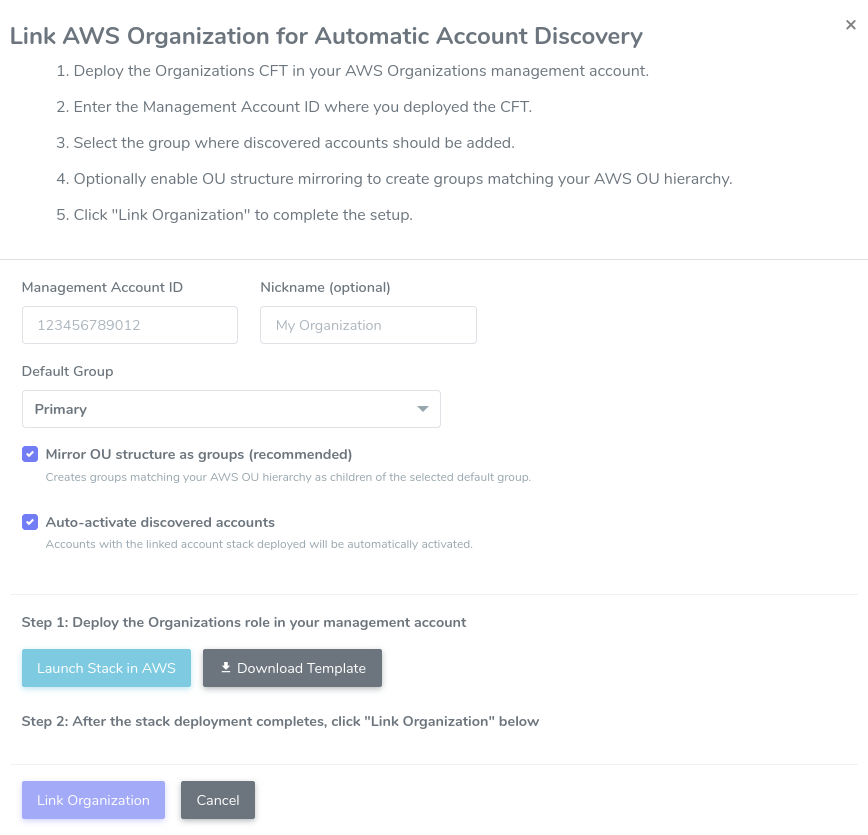
To link your AWS Organization, go to `Manage Accounts` and choose the option to link an Organization. This opens the `Link AWS Organization for Automatic Account Discovery` popup.
1. Deploy the Organizations CloudFormation Template in your AWS Organizations management account by clicking `Launch Stack in AWS`, or click `Download Template` if you'd rather deploy it yourself.
2. Once the stack deployment completes, enter the `Management Account ID` where you deployed the template.
3. Optionally give the Organization a `Nickname`.
4. Select the `Default Group` where discovered accounts should be added.
5. Leave `Mirror OU structure as groups` checked if you'd like groups automatically created to match your AWS OU hierarchy - this is recommended.
6. Leave `Auto-activate discovered accounts` checked if you want newly discovered accounts to be automatically activated once their linked account stack is deployed.
7. Click `Link Organization` to complete the setup.
{% hint style="info" %}
Once linked, any new account added to the Organization will automatically be discovered and go through the same [Linking an AWS Account](/console-overview/access-management/linked-accounts/linking-an-aws-account.md) process without manual intervention.
{% endhint %}
---
# Agent Instructions
This documentation is published with GitBook. GitBook is the documentation platform designed so that both humans and AI agents can read, navigate, and reason over technical content effectively. Learn more at gitbook.com.
## Querying This Documentation
If you need additional information that is not directly available in this page, you can query the documentation dynamically by asking a question.
Perform an HTTP GET request on the current page URL with the `ask` query parameter, and the optional `goal` query parameter:
```
GET https://help.cloudstoragesec.com/console-overview/access-management/linked-accounts/linking-aws-organizations.md?ask=&goal=
```
`ask` is the immediate question: it should be specific, self-contained, and written in natural language.
`goal` is optional and describes the broader end goal you are ultimately trying to accomplish on behalf of the user. GitBook uses it to tailor the answer towards what is most useful for that goal.
The response will contain a direct answer to the question and relevant excerpts and sources from the documentation.
Use this mechanism when the answer is not explicitly present in the current page, you need clarification or additional context, or you want to retrieve related documentation sections.